Showing posts with label tracking tags. Show all posts

Tuesday, March 12, 2013

The Heart of the Meta

This article describes Arke System's Meta Tag Manager shared source module, available for free download from the Sitecore Marketplace.


Update 27-March-2013: Several changes have been made to this module, including adding new tag types (properties), adding support for all tag types in the pipeline, and creating "Custom Tags" to replace the less intuitive "Dynamic Processors"). See the documentation file in the Sitecore Marketplace for details.
It's almost inevitable that at some point in a solution's lifespan, there comes a need to add various types of meta tags to the head of your pages. Sometimes it's site-wide tags like turning off the silly IE image toolbar (thankfully a legacy issue now). Sometimes it's something you may need at the page level, like instructing robots not to crawl the page. Sometimes the tag values are static, like a robot directive  Sometimes they're dynamic, like page type (template), GUID or other info needed by crawlers or page script. Sometimes the need is simple, sometimes there are very complex tagging requirements for analytics or search crawling.

I've found that over time, solutions wind up with meta tags being handled in dozens of ways ... sometimes in markup, sometimes in code-behind, sometimes in base layouts, sometimes in renderings, sometimes in handlers. Discovering the providence of a tag you find in the final HTML can be challenging.

Recently, a client was concerned about the S.E.O. ramifications of having identical pages at more than one URL on their Sitecore site (for example, with and without "/en" in the path). Having pages like this (or worse, internal links formed differently) can decrease search ranking. If the same page is at two URLs, and there are links to both, the "link juice" is diluted across those pages.

One way to overcome this is to issue a "canonical URL" meta tag. If you emit a meta tag with the same canonical URL on both pages, it informs the search engine which URL is "authoritative" for that page. The search engine will (theoretically) award all of the link juice to the canonical URL.

If you are using a common base layout class, the simplest thing to do would be to have the code-behind of that class hang the canonical meta tag in the page header. But in this case, the client did not have a common base layout.

This kind of thing has come up often enough that I was motivated to create a MetaTag management module. Different chunks of code need to create meta tags, and it’s not always convenient or even possible to limit the timing of meta tag generation to the layout.

This article only covers some highlight from the module. For more detail, see the full documentation at the Sitecore Marketplace.

Overview


Tags can be added four ways:

  1. By adding processors to the InjectMetaTags pipeline.
  2. In the content editor, by adding tag definitions to a GlobalTags folder (these tags appear site-wide).
  3. In the content editor, by selecting pre-defined tags in a field that can be added to any template (these tags appear on individual pages)
  4. In code, at any point in the page lifecycle. This allows code in layouts, sublayouts and renderings to add meta tags “ad hoc”.


Several tag "types" are support to simplify creation of tags in code or configuration:


  1. Static tags: Tags where both the name and value are static, such a “robots noindex”.
  2. Custom tags: Tags where either the name, value or both are generated by custom logic.
  3. Method tags: Tags where the name is static, and the value is derived from an existing static method.
  4. Property tags: Tags where the name is static, and the value is derived from an existing static property.

Method and Property tags allow creation of dynamic tags entirely in configuration, with no coding. These tags derive their values at runttime from existing methods or properties.


There seems to be two subspecies of meta tag markup, those that use a “property” attribute and those that use “name”. Both are still effectively name/value pairs. The “name” style tag seems to be more common, but notable sets of commonly-used tags (like OpenGraph tags) use the “property” structure. This module allows both styles.

Architecture


The module uses a collection of tag description objects (not markup) that persist through the page lifecycle. Tags are added to this collection in various ways, and are flushed to the head section of the page after pre-render. To flush the tags to the page, each is formed into a custom MetaTag control. 

No modifications to the solution’s code or markup are required; all of the artifacts and event hooks are created using pipeline processors added to the httpRequestBegin and insertRenderings pipelines.

Adding Tags From Code


Coders can add tags to the page in any point in the page lifecycle, using provided convenience methods.

    PageTags.AddTag(MetaTagType.name, "MyTag", "This is my tag.");

Managing Tags in the Content Editor


Site administrators can create site-wide tags by adding "StaticMetaTag" and "DynamicMetaTag" items to the appropriate folder in the Modules section of the content tree. Items added to the "GlobalTags" folder are emitted on every page; items added to the "OptionalTags" folder are available for content authors to use selectively in their pages (see below).


The definition of a StaticMeta tag is simple; just specify the tag type ("name" or "property"), and the key and value.


To define a dynamic tag, you must first create a simple "Dynamic Processor" class that exposes properties for TagType, Key and Value. Sample Dynamic Processors are provided that emit tags for the Item ID, Template Key and Machine Name. Once this class is defined, you can add it by creating a DynamicMetaTag item and supplying the class signature for the dynamic processor.


namespace Arke.SharedSource.MetaTags.DynamicProcessors
{
  public class ItemID : IDynamicProcessor
  {
    public MetaTagType TagType { get; set; }
    public string Key { get; set; }
    public string Value { get; set; }
 
    public ItemID()
    {
      TagType = MetaTagType.name;
      Key = "ItemID";
      Value = Sitecore.Context.Item.ID.ToString();
    }
  }
}


A base template is provided, which can be added to the base templates of any site template. This gives the content author an opportunity to include the pre-defined tags (those defined n the OptionalTags folder) in any given page.


Managing Tags in the InjectMetaTags Pipeline


The process for gathering, forming and injecting tags is itself managed with a custom pipeline. Developers can add custom tags by inserting processors into this pipeline. They can also change the behavior of the process by replacing existing processors.
For more information on how to manage processes in your solutions by creating custom pipelines, see "Put That in Your Pipe and Process It"

In addition to the processors that gather the meta tags defined in content (global and page-scoped), there are  other "demonstrator" processor included in the module. One shows how to implement a fully custom meta tag processor, using the "canonical" meta tag as an example.

There are also processors that allow you to leverage your "Dynamic Processors" or any static method (including any Sitecore static method) to add a global meta, entirely in configuration, without writing a single line of code. This is accomplished by adding processor nodes that have child nodes the define class signatures and names of the processor or static method to be used. 

Here's and example of a meta tag pipeline in config (I've shortened the type names for readability):

<Arke.MetaTags.InjectMetaTags>
  <processor type="Arke...CheckContextItem, Arke.SharedSource.MetaTags" />
  <processor type="Arke...CheckHeader, Arke.SharedSource.MetaTags" />
  <processor type="Arke...CanonialUrl, Arke.SharedSource.MetaTags" />
  <processor type="Arke...MethodTag, Arke.SharedSource.MetaTags">
    <TypeSignature>Sitecore.Context, Sitecore.Kernel</TypeSignature>
    <MethodName>GetSiteName</MethodName>
    <TagName>sc_site</TagName>
    <TagType>name</TagType>
  </processor>
  <processor type="Arke...GlobalTags, Arke.SharedSource.MetaTags" />
  <processor type="Arke...ItemTags, Arke.SharedSource.MetaTags" />
  <processor type="Arke...FlushMetaTags, Arke.SharedSource.MetaTags" />
</Arke.MetaTags.InjectMetaTags>


The source code for this module is available at the Sitecore Marketplace. You can also download the documentation file.

Tuesday, February 12, 2013

Tag, You're it: Tracking Tag Management in Sitecore

As web marketers, a great deal of our strategy relies on hunting (we'll leave farming tactics, like social media, nurturing and personalization, for another day). Most of our hunting activities rely heavily on tracking. The wiki definition of tracking (in the hunting context) fits this quite well:
Tracking in hunting and ecology is the science and art of observing animal tracks and other signs, with the goal of gaining understanding of the landscape and the animal being tracked (quarry).
For web marketers, hunting requires an understanding of the web ecosystem and the behavior of our "quarry" within it, so tracking is very important to us. There has been an explosion in tracking technologies of late, most of which are based on injecting tracking tags into our pages. Our pages have more tags hanging off them than the discount rack at Macy's --- so much so that tracking tag management has become a hot service offering. Just Google tracking tag management and you'll find more tools than you can count.

These tools can be appealing. After all, we have so much tag content that we need to manage on our site.

Wait a minute ... "content" ... "manage" ... hmmm --- aren't we already working in a content management environment?

There's no doubt that we could build a superb tracking tag management system into Sitecore. When we do a deep dive into these tagging technologies, we find that the formation and injection of tags into our pages can become quite complicated, but Sitecore is the best system around for building complex content management architectures.


Simple tracking tag management in Sitecore


But let's start off simple. When you first get into tagging, you find that at its simplest, all you have to do is copy a tag snippet (typically some javascript) into your pages. You find  new tracking service you want to use, you paste their snippet into your pages, and you're off.

Simple as that sounds, our marketers can't just do that themselves. They need the developers to deploy the tags to the production servers, typically within layouts. But marketeers want things done now ... so why don't we simplify this process by creating support for simple tag injection?

The solution I'll describe here is pretty rudimentary. It assumes that you are tagging every page on your site with every tag you have. That's fine for a start; over time, we'll examine ways to create dynamic tags and associate tags with content more robustly.

We'll create templates to allow the tag markup to be managed as Sitecore content. Since we want the tags on every page, we'll use a pipeline processor to inject them into every page (rather than relying on layouts).

You can download the source and package for this solution from the Sitecore Marketplace.


The templates


First, a couple of templates. We will create other tag types over time, but for now we'll just create a template for "Html Tracking Tag" that just holds some static tag markup. We'll also create a folder template to hold all of our tag items. This just a template with no fields, but with Standard Values set with insert options for our tag template.


The HtmlTrackingTag template is simple; it just contains a memo field to hold the tag markup.


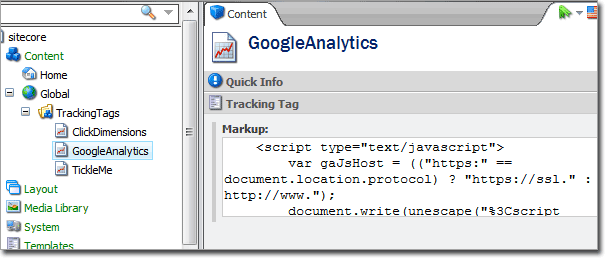
We'll create a TrackingTagFolder in our content, wherever we manage "globals".


I've added a couple of tag items, which contain simple tag markup copied from that service's site.


The code


First, we'll need a configuration file to register up our pipeline and manage our settings:

<?xml version="1.0"?>
<configuration xmlns:patch="http://www.sitecore.net/xmlconfig/">
    <sitecore>
        <settings>
            <setting name="TrackingTags.GlobalTagFolder" value="/sitecore/content/Global/TrackingTags" />
        </settings>
        <pipelines>
            <insertRenderings>
                <processor
                    type="Arke.SharedSource.TrackingTags.Pipelines.InsertRenderings.InsertTrackingTags, Arke.SharedSource.TrackingTags"
                    patch:after="processor[@type='Sitecore.Pipelines.InsertRenderings.Processors.AddRenderings, Sitecore.Kernel']"
                    />
            </insertRenderings>
        </pipelines>
    </sitecore>
</configuration>

And we'll create an associated settings class to make it simpler to access our settings (we only have one for now, but it's good practice).

namespace Arke.SharedSource.TrackingTags
{
 public class Settings
 {
  public const string DEFAULT_GLOBAL_TAG_FOLDER = "/sitecore/content/Global/TrackingTags";
  public static string GlobalTagFolder
  {
   get
   {
    return Sitecore.Configuration.Settings.GetSetting("TrackingTags.GlobalTagFolder", DEFAULT_GLOBAL_TAG_FOLDER);
   }
  }
 
 }
}


To render the tags to the page, we'll create a simple web control that grabs the markup from the tag definition item and spits it to the page.

namespace Arke.SharedSource.TrackingTags
{
 public class HtmlTrackingTag : Sitecore.Web.UI.WebControl
 {
  System.Web.UI.WebControls.Literal container;
 
  public string TagItem { get; set; }
 
  protected override void OnInit(EventArgs e)
  {
   base.OnInit(e);
   container = new System.Web.UI.WebControls.Literal();
  }
 
  protected override void CreateChildControls()
  {
   Assert.IsNotNullOrEmpty(TagItem, "tag item");
   Item item = Sitecore.Context.Database.GetItem(TagItem);
   Assert.IsNotNull(item.Fields["Markup"], "Markup");
   string markup = item.Fields["Markup"].Value;
   container.Text = markup;
  }
 
  protected override void DoRender(HtmlTextWriter output)
  {
   EnsureChildControls();
   container.RenderControl(output);
  }
 
  protected override string GetCachingID() 
  { 
   return this.GetType().FullName; 
  }
 }
}

Finally, we'll use a pipeline processor to iterate over the global tags and inject a HtmlTrackingTag control into the page for each.

namespace Arke.SharedSource.TrackingTags.Pipelines.InsertRenderings
{
 public class InsertTrackingTags
 {
  public void Process(InsertRenderingsArgs args)
  {
   Assert.ArgumentNotNull(args, "args");
 
   if (Sitecore.Context.Site.Name == "shell")
   {
    return;
   }
 
   Item globalTagFolder = Sitecore.Context.Database.GetItem(Settings.GlobalTagFolder);
 
   Profiler.StartOperation("Adding Tracking Tags.");
 
   foreach (Item globalTagItem in globalTagFolder.Children)
   {
    Arke.SharedSource.TrackingTags.HtmlTrackingTag control = 
     new Arke.SharedSource.TrackingTags.HtmlTrackingTag();
    if (control != null)
    {
     control.TagItem = globalTagItem.ID.ToGuid().ToString();
     control.Cacheable = true;
     control.VaryByData = true;
     RenderingReference reference = new RenderingReference(control);
     reference.AddToFormIfUnused = true;
     args.Renderings.Add(reference);
     Tracer.Info(string.Concat("Added tracking tag '", globalTagItem.Name, "'"));
    }
   }
 
   Profiler.EndOperation();
  }
 }
}

Note from the config file that we're putting our processor before Sitecore's AddRenderings processor.This puts our renderings at the top of the body part of the page.

If you look at the page in debug mode, you can see the script tag renderings.


Shortcomings of this solution

Of course, this is a bit of a dangerous solution. We've enabled content managers to manually inject script into the page. Either by accident or intent, a content owner could wreak havoc on the site. The tag definitions in globals should have good security to limit access only to trusted power users.

As I said before, this is a pretty simple solution. The obvious next step is to create a place to store "ad hoc" tags, and a rendering parameter template for the HtmlTrackingTag control. This would allow content manager to insert specific tag into specific pages.

Beyond this, a much more robust solution would include templates for the well-known tags so they could be managed more easily (by pasting in specific parameters into specific fields, rather than the entire tag). Dynamic tags that modify their behavior depending on context, template or rendering parameters could be built as well.

This solution allows the easy things to be easy, and the hard things will just have to wait till later. At least now, when we identify a new tracking service we want to implement, its as simple as "tag, you're it".


The source code and package for this solution are available at the Sitecore Marketplace.